
How to access events using Teams
Microsoft Teams is the AFSC’s web conferencing tool. If you don’t have Teams installed on your computer, you can participate in a Teams event from the Teams web app, though the feature set is more limited.
To access a meeting that has been set up on Teams, you should go to the calendar event (or email) that contains the connection information and click the "Join Microsoft Teams Meeting" link.
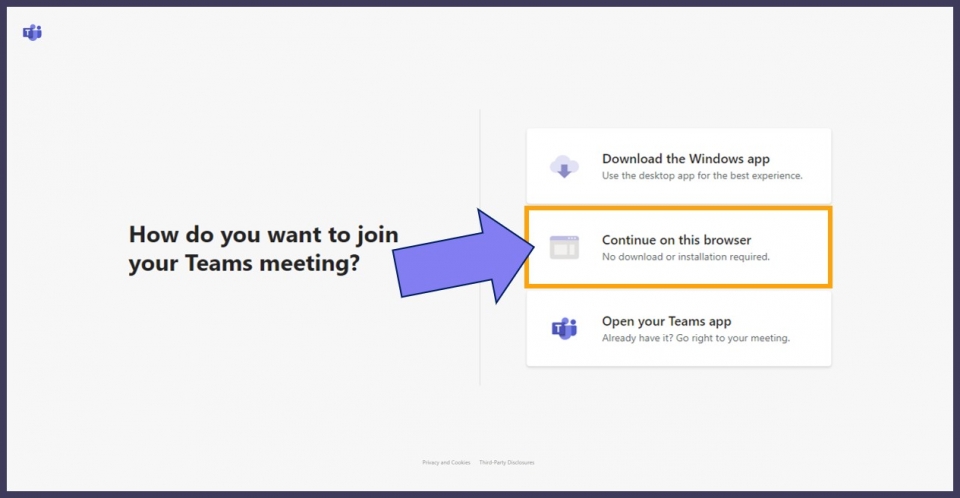
It will open a webpage where you can choose to join the meeting via the web or to download the Teams Windows app. Click the “Continue on this browser” button to join from your browser. If prompted, allow Teams to access your audio and video devices. (The Chrome and Edge browsers are supported and will allow you to join the audio online, so we suggest using one of those. If you need to join on an unsupported browser, please see this page for more information.)
A new page will open where you can choose your audio and video settings. Choose whether you want to come in with your video on or off, and muted or unmuted. Enter your name and click “Join now.” (If you have AFSC credentials, please sign in using the option at the bottom of the screen.)
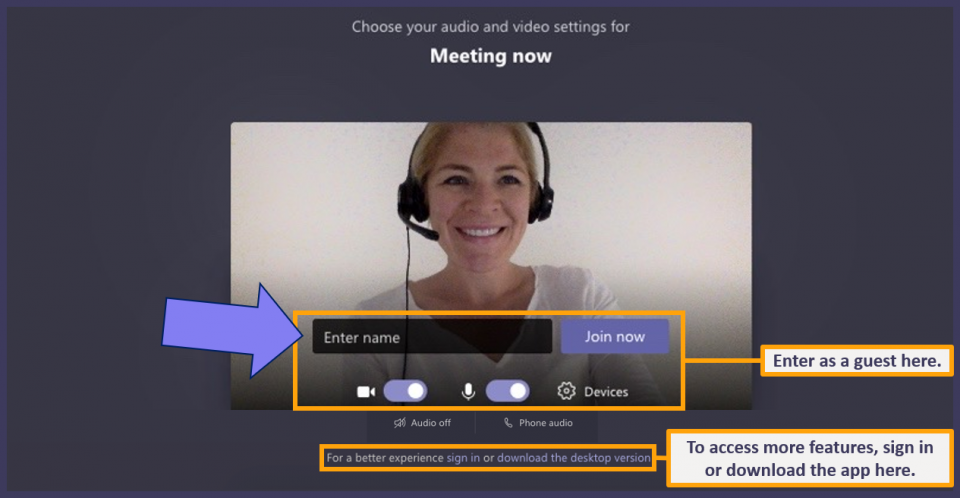
If you join without signing in, you may enter a virtual lobby. This keeps our meetings safe by preventing users who are not signed in with AFSC credentials from entering without permission. The organizers will receive a notification when they join and will admit you to the meeting.
Mouse over the meeting window to access the meeting controls.
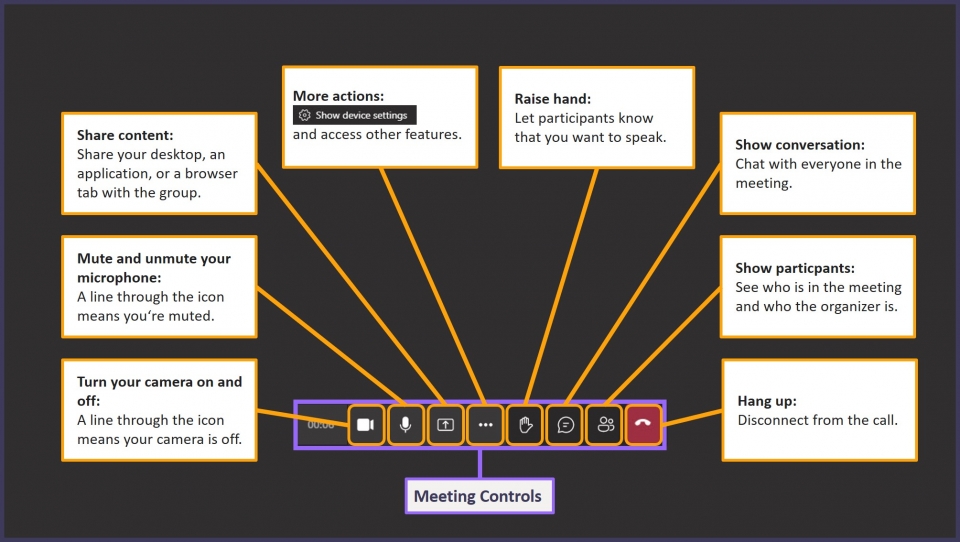
To troubleshoot your audio, click on the “More actions” icon and select “Show device settings.” You can select your devices from the panel that appears on the left.
If you experience poor audio or video quality during the meeting, the problem may be your internet connection. Switch a wired connection, or a stronger wifi network, if possible.
If your internet connection isn’t strong, turning off video can salvage your audio. Click the camera icon in the meeting controls to stop sharing video. You can turn off incoming video from the “More actions” menu.
If phone conferencing is available for your meeting, you can switch your audio to telephone without leaving the meeting. Click “More actions” and then “Show meeting info” to display phone options.
To join on a mobile device, download the Teams app ahead of time from the iOS app store or Google Play store. After the install, clicking the “Join Microsoft Teams Meeting” link from the invitation will trigger the app to open up.